
Explore Latest Blog & News at Premier Aftermarket Auto Parts Store

How to Use the Part Number Filter
In the filters tab you will see this: This allows you to: – either list every MPN you want to load regardless of if they match the filters -or upload an exact list of MPNs you want to have in the store To use this you can either type in the MPN one per line, or
Read More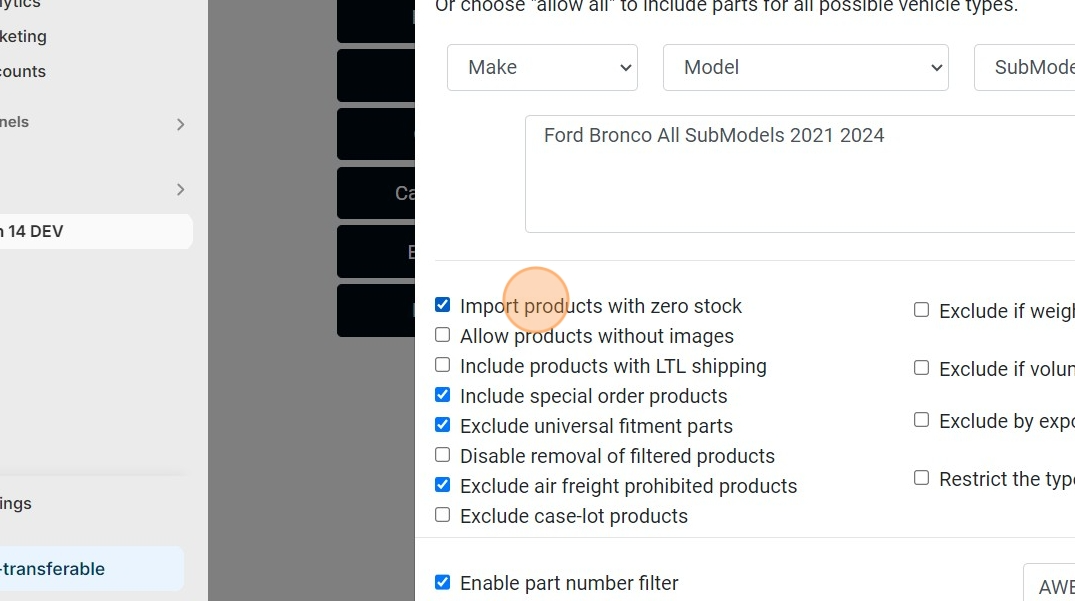
Zero Stock Items
In the filters tab of the app we have the option to import products with zero stock. This setting only applies when uploading products, helping to prioritize loading only products with inventory, and excluding out of stock products until they come back in stock. At this point they would then be imported. “Import products with
Read More
International Filters
Is your store located outside the USA? Good news, we have filters for you. You can exclude products that can’t be shipped or imported into your country, or filter out products over or under a certain weight for easier shipping set up!
Read More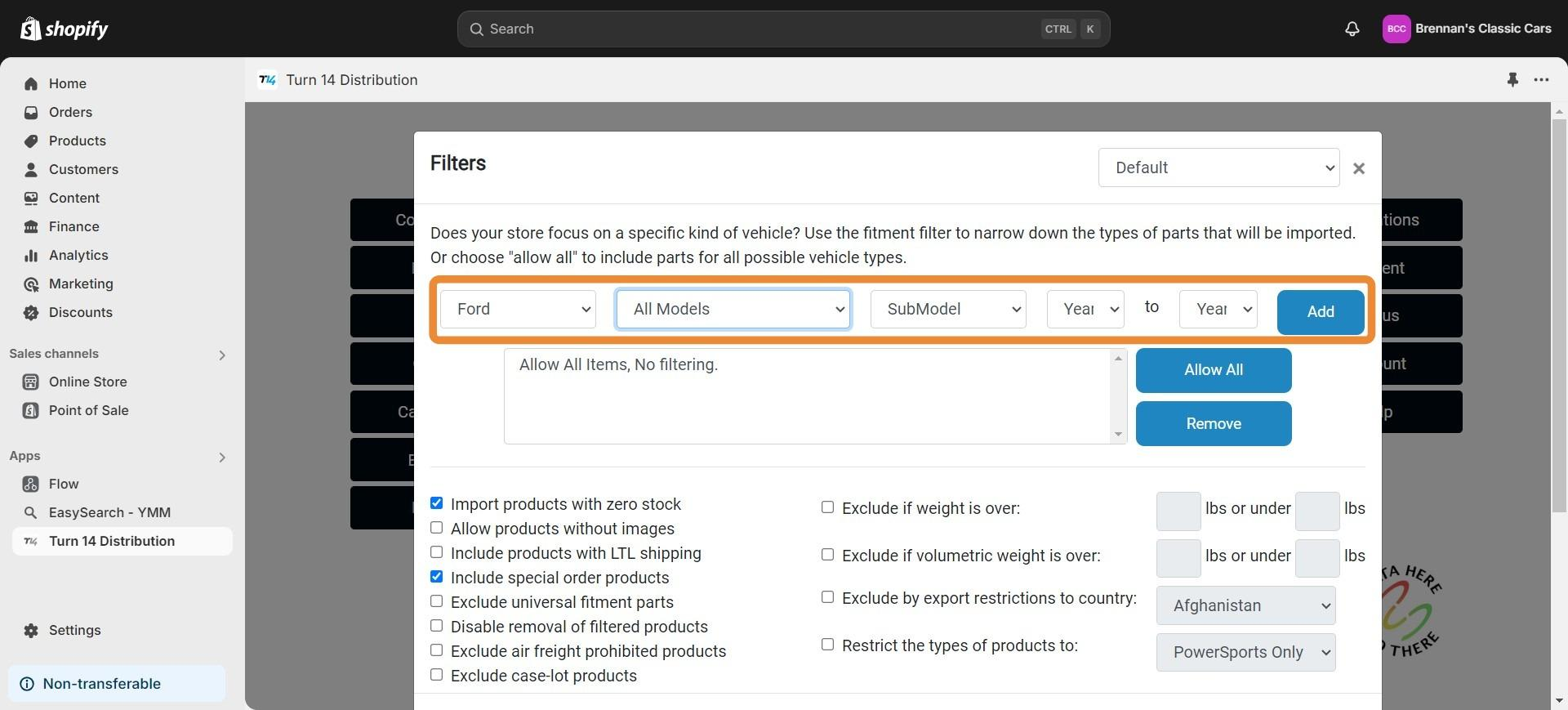
Using the fitment filter
1. Open the Turn 14 Distribution app 2. Click “Filters” 3. Use the menus shown here to select a vehicle type. These filters can be as specific as a certain year of a certain submodel, or as broad as an entire make. 4. Click “Add” to add the vehicle you’ve specified to the fitment filter.
Read More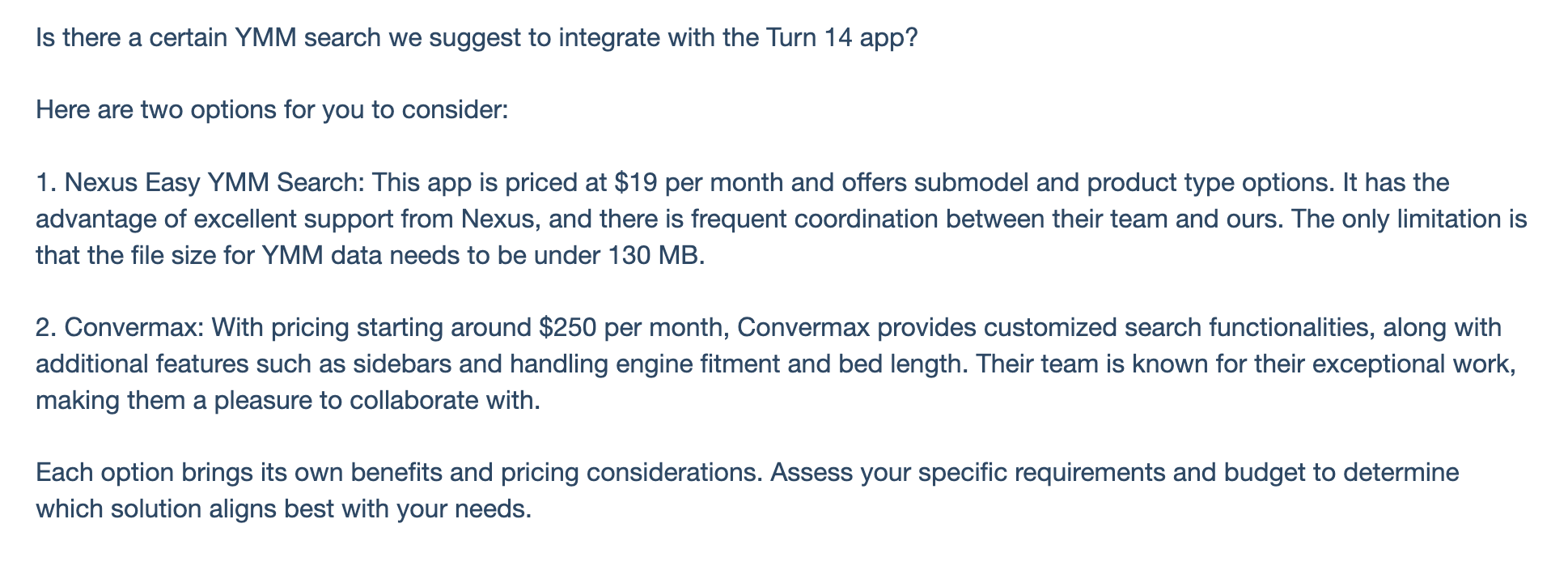
YMM Search Plugins/Integrations
Is there a certain YMM search we suggest to integrate with the Turn 14 app? Here are two options for you to consider: 1. Nexus Easy YMM Search: This app is priced at $19 per month and offers submodel and product type options. It has the advantage of excellent support from Nexus, and there is
Read More
Using Buckets as a Replacement for YMM search
You can use the Fitment Buckets that come with the app for niche sites instead of a YMM search- for no extra charge! Having one or more fitment buckets makes it easy for your buyers to shop using their mobile phones. They can quickly select from whole groups of items. This is different from a classic
Read More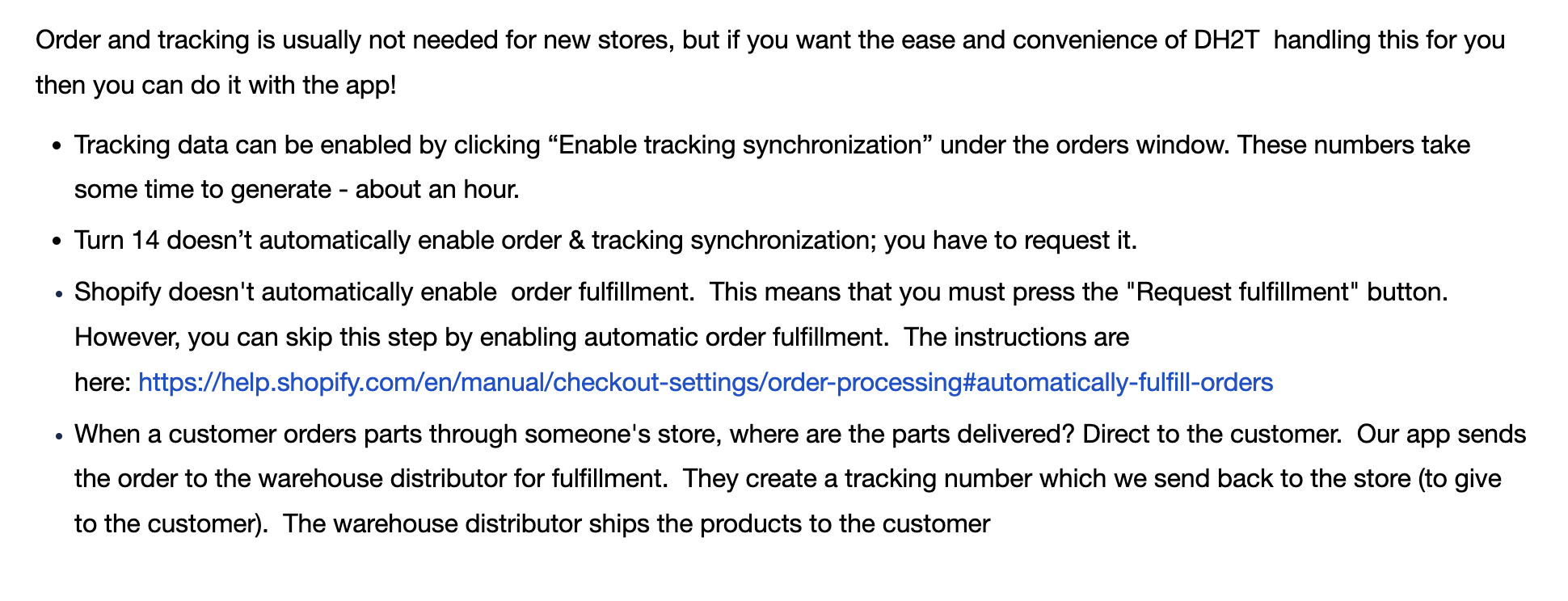
Order and Tracking General Information
Order and tracking is usually not needed for new stores, but if you want the ease and convenience of DH2T handling this for you then you can do it with the app! When a customer orders parts through someone’s store, where are the parts delivered? Direct to the customer. Our app sends the order to
Read More
Order and Tracking Setup Instructions
Preparing for the test order: 1. Click “Orders” 2. Click the “Provide EPA acknowledgements” field. 3. Click the “Provide Prop65 acknowledgements” field. 4. Click the “Provide CARB acknowledgements” field. 5. Click the “Enable tracking synchronization” field. 6. Click the “Allow Shopify to mark orders as cancelled” field. 7. Acknowledge the information about cancelling orders 8.
Read More
Live Shipping Rates Setup Instructions
First, users must have Advanced Shopify or Shopify Plus plans or yearly billing. See link: Third-party carrier-calculated shipping rates Second you need to have set up your Shipping Zones You also need to have completed a test order. Also check out these links to set up backup rates. Learn more about backup rates in the Shopify Help
Read More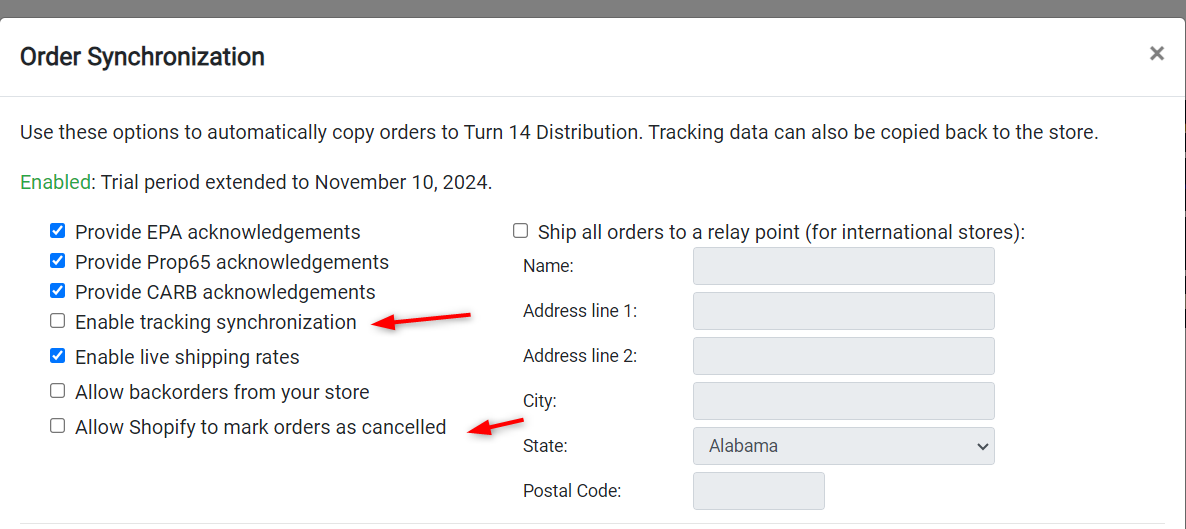
Cancelling an Order via Shopify
To enable this option go to the orders tab in the Turn 14 app, and make sure you have both enable tracking synchronization and allow Shopify to mark orders as cancelled. There will be a pop up you need to acknowledge: This option allows you to cancel orders in Shopify without reaching out to the
Read More