
Explore Latest Blog & News at Premier Aftermarket Auto Parts Store

Connecting MotorState
Use the following instructions to enable your Motor State data feed for Slingshot 1. Log into your PriceGuidePro account using the credentials you received from your Motor State representative 2. Open the Business Tools menu and select Data Export: 3.Click on the “Create a new export” button 4. Enter “DH2T” as the data export name, this step
Read More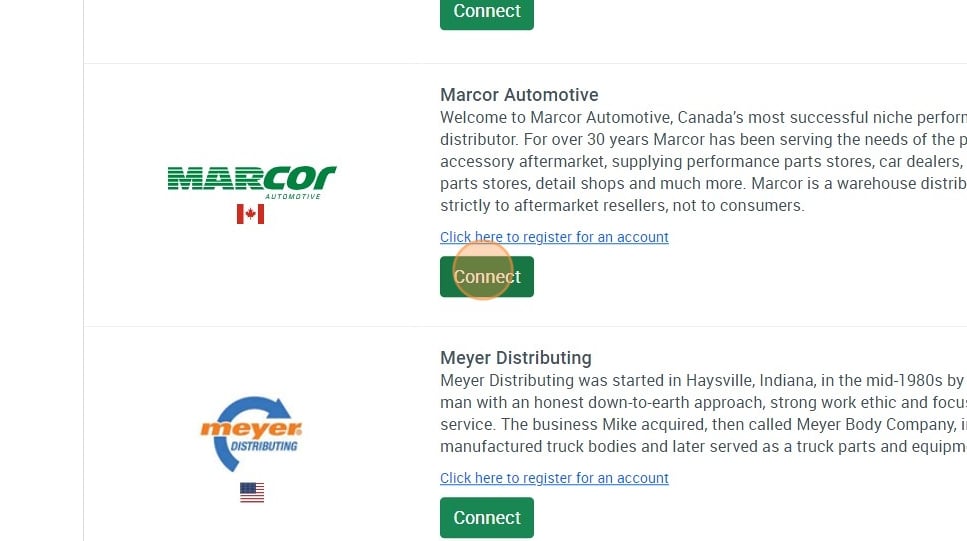
Connecting Marcor
1. Open your Shopify store 2. Open the “Slingshot Automotive” app 3. Click the “Settings” tab 4. Scroll down to Marcor and click “Connect” 5. Email Support@dataheretothere.com and request an FTP be created for you for Marcor. Include the name of your store and URL in this email. 6. Email your Marcor account representative the provided FTP information and
Read More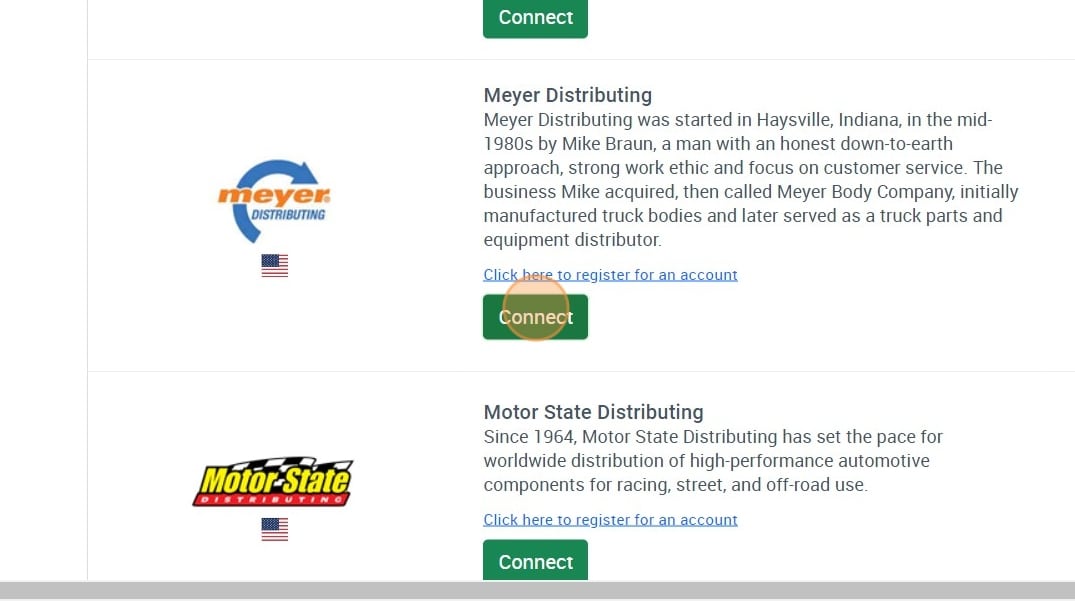
Connecting Meyer
1. Open your Shopify store 2. Open the “Slingshot Automotive” app 3. Click the “Settings” tab 4. Scroll down to Meyer and click “Connect” 5. Email Support@dataheretothere.com and request an FTP be created for you for Meyer. Include the name of your store and URL in this email. 6. Email your Meyer account representative the provided FTP information and
Read More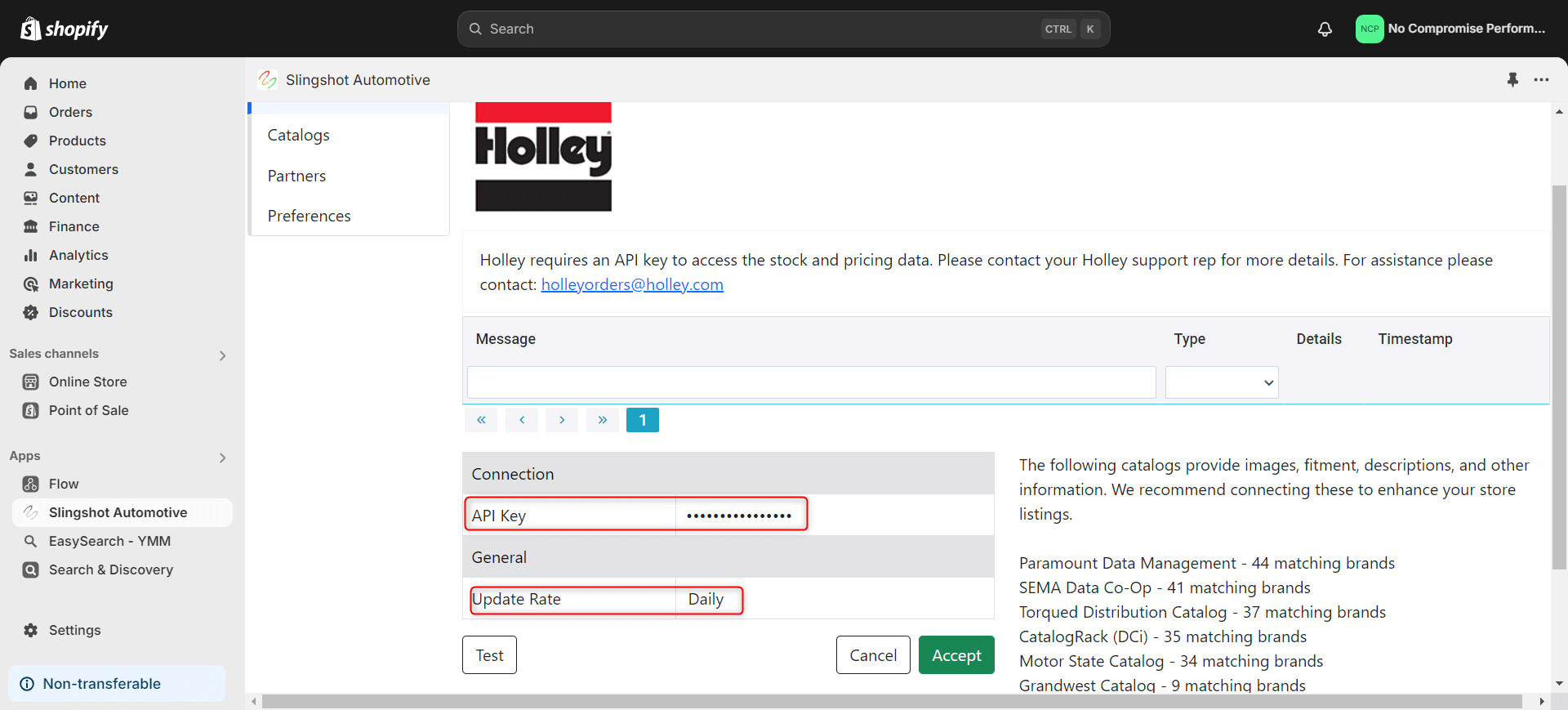
Connecting Holley
Customers are required to have a http://b2b.holley.com/ account. 1.Sign into Holley B2B (https://b2b.holley.com) 2.Click Downloads 3. Right click on the “Available Inventory Report” 4. Click copy link address. See screenshot below. The link address contains your unique API key. The link will look something like: https://b2b.holley.com/data/atp/?api_key=123abc456efg7h8i You then copy the part after api_key= (123abc456efg7h8i from the example above) into the Holley connection
Read More
Connecting Keystone
1. Open your Shopify store 2. Open the “Slingshot Automotive” app 3. Click the “Settings” tab 4. Scroll down and click “Connect” under “Keystone” in the list of Distributors 5. Enter your Keystone FTP Credentials. -Keystone provides FTP and SDK access. You will need to reach out to your Keystone representative and ask for your
Read More
Connecting Helmet House
1. Open your Shopify store 2. Open the “Slingshot Automotive” app 3. Click “Settings” 4. Scroll down to “Helmet House” and click “Connect” 1. Click “Update Rate” dropdown and select “Hourly” or “Daily” (Simply a matter of your preference) 2. Click “Accept”
Read More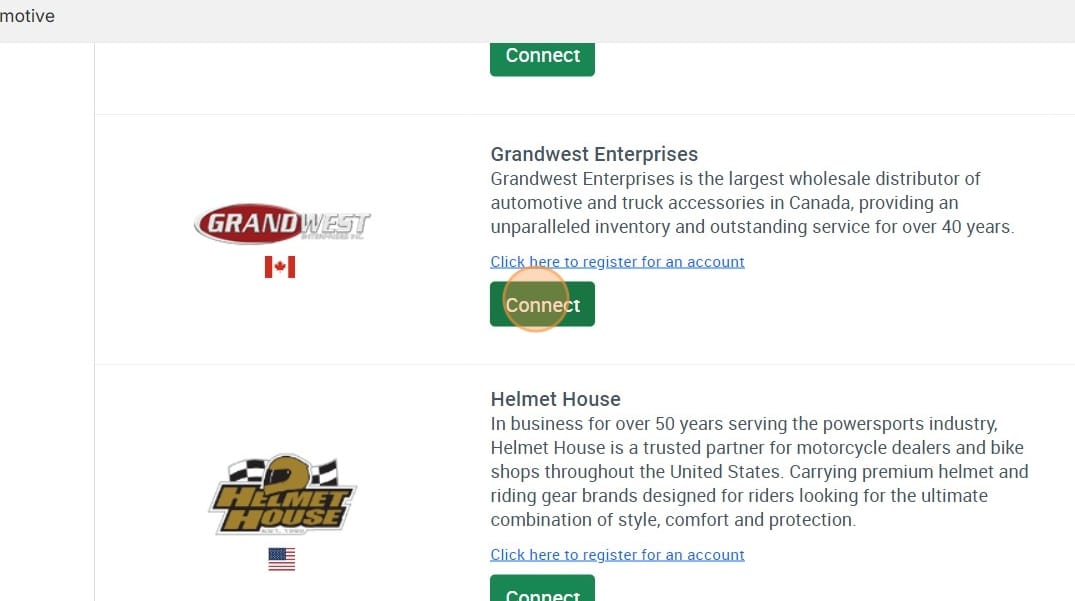
Connecting Grandwest
1. Open your Shopify store 2. Open the “Slingshot Automotive” app 3. Click “Settings” 4. Scroll down to “Grandwest” and click “Connect” 5. Contact your Grandwest sales representative and ask them to set up your data feed. They will provide you with an account number to use with your integration partner 6. Enter your Grandwest
Read More
Connecting FastCo
1. Open your Shopify store 2. Open the “Slingshot Automotive” app 3. Click “Settings” 4. Scroll down to “FastCo” and click “Connect” 5. Enter your FTP credentials FTP Credentials can be obtained from your FastCo account manager, contact PYoshida@fastco.ca for assistance.
Read More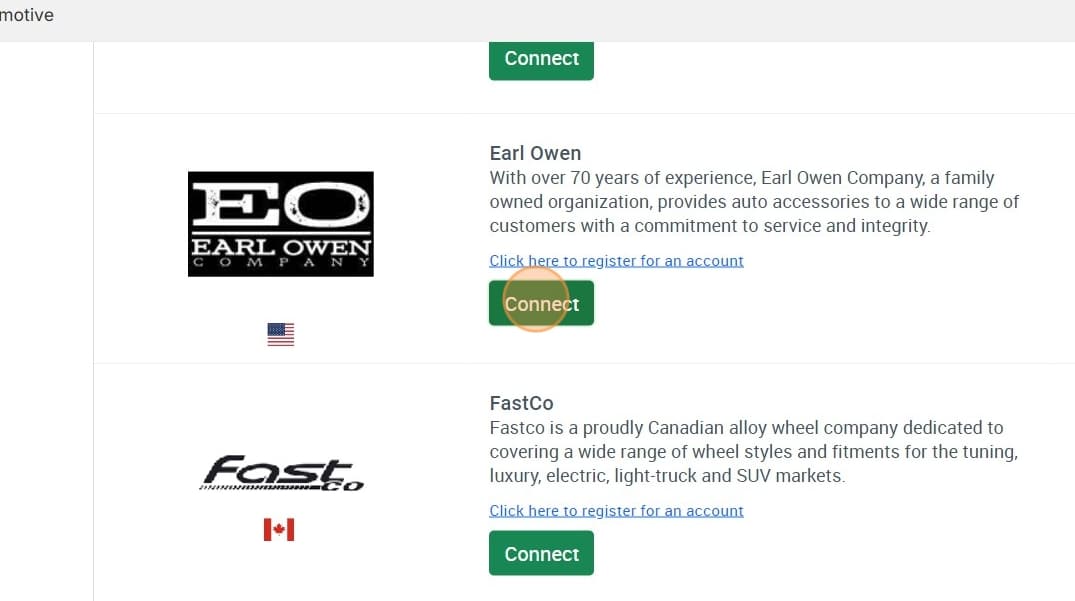
Connecting Earl Owen
1. Open your Shopify store 2. Open the “Slingshot Automotive” app 3. Click the “Settings” tab 4. Scroll down to Earl Owen and click “Connect” 5. Email Support@dataheretothere.com and request an FTP be created for you for Earl Owen. Include the name of your store and URL in this email. 6. Email your Earl Owen account representative the provided FTP
Read More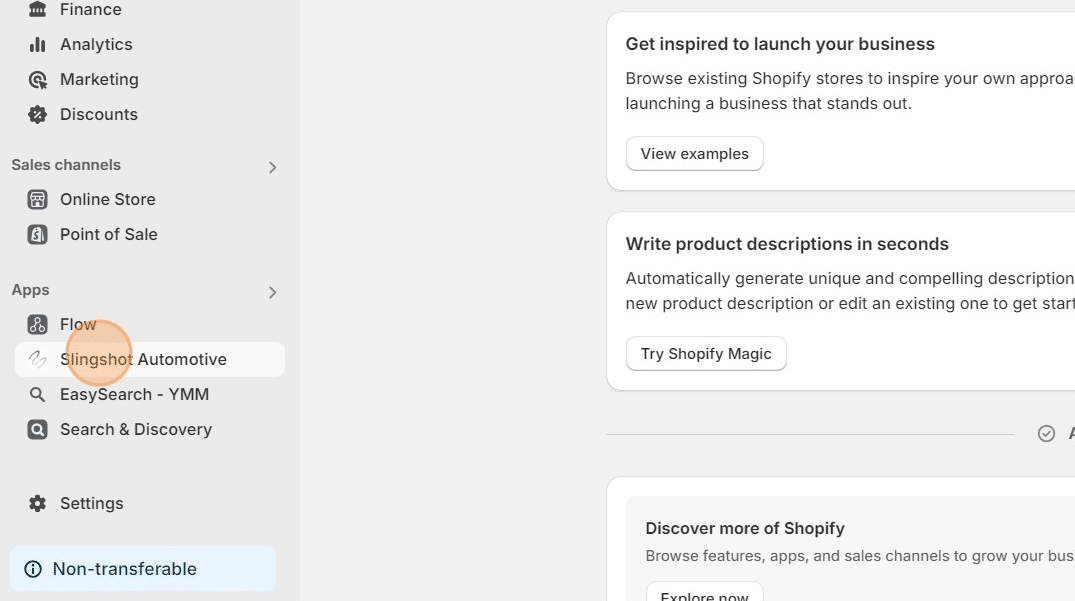
Connecting AllPro
1. Open your Shopify store 2. Open the “Slingshot Automotive” app 3. Click “Settings” 4. Scroll down to “AllPro” and click “Connect” 5. Enter your FTP credentials and click “Accept” FTP Credentials can be obtained from your AllPro account manager, contact customercare@allprodistributing.net for assistance.
Read More