
Order and Tracking Setup Instructions

Preparing for the test order:

1. Click “Orders”

Data Here-to-There Inc. | Order and Tracking Setup Instructions

2. Click the “Provide EPA acknowledgements” field.

Data Here-to-There Inc. | Order and Tracking Setup Instructions

3. Click the “Provide Prop65 acknowledgements” field.

Data Here-to-There Inc. | Order and Tracking Setup Instructions

4. Click the “Provide CARB acknowledgements” field.

Data Here-to-There Inc. | Order and Tracking Setup Instructions

5. Click the “Enable tracking synchronization” field.

Data Here-to-There Inc. | Order and Tracking Setup Instructions

6. Click the “Allow Shopify to mark orders as cancelled” field.

Data Here-to-There Inc. | Order and Tracking Setup Instructions

7. Acknowledge the information about cancelling orders

8. Scroll down and make sure you are in the “Testing environment”

Data Here-to-There Inc. | Order and Tracking Setup Instructions

In your Shopify Settings:

On Turn14.com:

Creating the test order:

1. Click “Orders”

Data Here-to-There Inc. | Order and Tracking Setup Instructions

2. Click “Create order”

Data Here-to-There Inc. | Order and Tracking Setup Instructions

3. Find a Turn 14 product that is in stock and add it to the order

Data Here-to-There Inc. | Order and Tracking Setup Instructions

4. Click the “Search or create a customer” field.

Data Here-to-There Inc. | Order and Tracking Setup Instructions

5. Create a customer, or use an existing profile make sure to use real customer information, including address and phone number. (This can be your own info if needed, so long as the address and phone number are both real.)

Data Here-to-There Inc. | Order and Tracking Setup Instructions

6. Click “Collect payment”

Data Here-to-There Inc. | Order and Tracking Setup Instructions

7. Click “Mark as paid” since this is a test order you wont be charged

Data Here-to-There Inc. | Order and Tracking Setup Instructions

8. Click “Create order”

Data Here-to-There Inc. | Order and Tracking Setup Instructions

9. Click “Request fulfillment”

Data Here-to-There Inc. | Order and Tracking Setup Instructions

10. Click “Send fulfillment request”

Data Here-to-There Inc. | Order and Tracking Setup Instructions

11. Email us the order number to send it over (this will be automated after we finish testing) The Turn 14 support team will then review the test order and enable production mode for their account (if they approve)

Once all of the items above have been completed, or if you have any questions on how to complete the above steps, email support@dataheretothere.com . If you need help checking your payment method, email the T14 accounting team at accounting@turn14.com or call 267-468-0350 x 8600.
Here’s the instructions to move to production mode.

Share:

More Scribes

multi location inventory

Multi Location Inventory

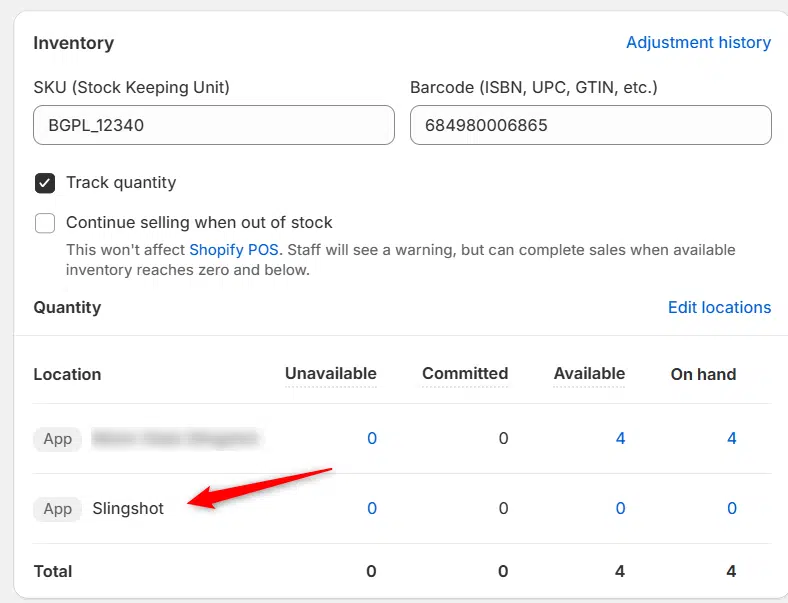
Previously we had all skus showing a single location called the “Slingshot App”, however we received a lot of requests

Add your Comment

Stay Connected

More Updates

Connecting The Wheel Group (TWG)

Connecting The Wheel Group (TWG)

1. Open your Shopify store 2. Open the “Slingshot Automotive” app 3. Click the “Settings” tab 4. Scroll down to The Wheel Group and click
AI-generated graphic: Illustration showing dirty data killing sales versus clean data driving growth in automotive e-commerce.

Dirty Data Clean Up: How to Turn Catalog Chaos into Ecommerce Sales Power

In the automotive aftermarket, messy catalogs and “dirty data” can stall sales before they start. Inconsistent listings, incorrect fitment, and missing details don’t just frustrate customers, they cost you conversions, returns, and revenue. As Selina Rentz-Weddle of MANN+HUMMEL noted, “dirty data creates friction at every level.” This article explains how cleaning up your catalog and syncing data across platforms can transform chaos into ecommerce sales power, and how Data Here-to-There’s apps make the process seamless.
Select your currency