Connecting FastCo (Catalog)

1. Open your Shopify store

2. Open the “Slingshot Automotive” app

Data Here-to-There Inc. | Connecting FastCo (Catalog)

3. Click “Settings”

Data Here-to-There Inc. | Connecting FastCo (Catalog)

4. Click “Catalogs”

Data Here-to-There Inc. | Connecting FastCo (Catalog)

5. Scroll down to “FastCo Catalog” and click “Connect”

Data Here-to-There Inc. | Connecting FastCo (Catalog)

5. Enter your FTP credentials and click “Accept” 

FTP Credentials can be obtained from your FastCo account manager, contact PYoshida@fastco.ca for assistance.

Data Here-to-There Inc. | Connecting FastCo (Catalog)

Share:

More Scribes

multi location inventory

Multi Location Inventory

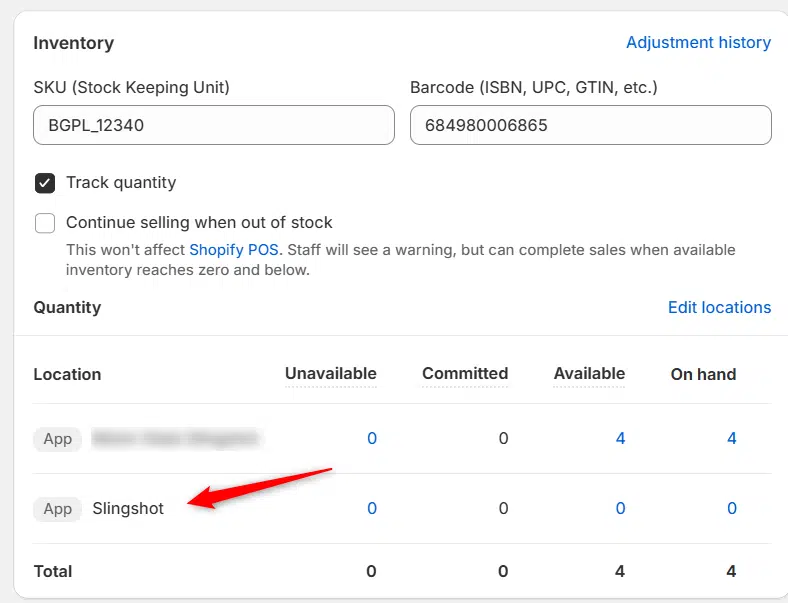
Previously we had all skus showing a single location called the “Slingshot App”, however we received a lot of requests
Create Parent collection in Shopify

Create Parent collection in Shopify

1. Click “Products” 2. Click “Collections” 3. Click “Create collection” 4. Click the “Title” field. 5. Enter the desired name

Add your Comment

Stay Connected

More Updates

Brand Specific Filters

Brand Specific Filters

If you want to set filters for specific brands, you can now do so! For example if you want to allow universal products for brands
Select your currency