Connecting FastCo (Catalog)

1. Open your Shopify store

2. Open the “Slingshot Automotive” app

Data Here-to-There Inc. | Connecting FastCo (Catalog)

3. Click “Settings”

Data Here-to-There Inc. | Connecting FastCo (Catalog)

4. Click “Catalogs”

Data Here-to-There Inc. | Connecting FastCo (Catalog)

5. Scroll down to “FastCo Catalog” and click “Connect”

Data Here-to-There Inc. | Connecting FastCo (Catalog)

5. Enter your FTP credentials and click “Accept” 

FTP Credentials can be obtained from your FastCo account manager, contact PYoshida@fastco.ca for assistance.

Data Here-to-There Inc. | Connecting FastCo (Catalog)

Share:

More Scribes

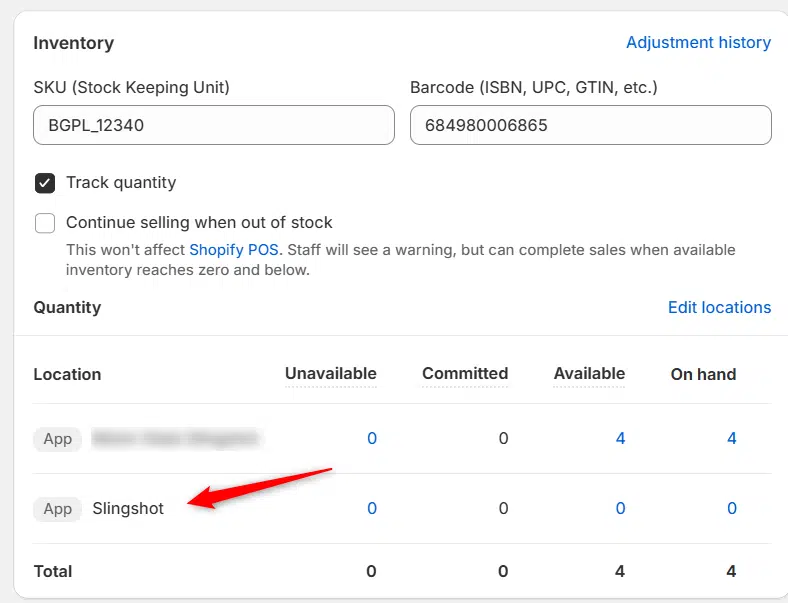
multi location inventory

Multi Location Inventory

Previously we had all skus showing a single location called the “Slingshot App”, however we received a lot of requests
Create Parent collection in Shopify

Create Parent collection in Shopify

1. Click “Products” 2. Click “Collections” 3. Click “Create collection” 4. Click the “Title” field. 5. Enter the desired name

Add your Comment

Stay Connected

More Updates

SEMA Data Coop (SDC) Brand Approvals

SEMA Data Coop (SDC) Brand Approvals

1. Navigate to https://apps.semadata.org/Account/Login 2. Enter your credentials and click “Sign In” 3. Click “Brand Data” 4. Find a brand you want and click “Request Data”
How to Customize FAQ Blocks

How to Customize FAQ Blocks

1. Open the theme editor by clicking “Customize” 2. Click “Home page” 3. Click “Pages” 4. Click “faq” 5. Click on any FAQ block to
Select your currency