How to disable “X amount sold in last X hours” feature on product page in Spark Theme

1. Open your Shopify store

2. Open the theme editor with the “Customize” button

Data Here-to-There Inc. | How to disable “X amount sold in last X hours” feature on product page in Spark Theme

3. Click the “Home Page” dropdown

Data Here-to-There Inc. | How to disable “X amount sold in last X hours” feature on product page in Spark Theme

4. Click “Products”

Data Here-to-There Inc. | How to disable “X amount sold in last X hours” feature on product page in Spark Theme

5. Click “Default product”

Data Here-to-There Inc. | How to disable “X amount sold in last X hours” feature on product page in Spark Theme

6. Open the “Product Top Layout” section

Data Here-to-There Inc. | How to disable “X amount sold in last X hours” feature on product page in Spark Theme

7. Scroll down to “Products has been sold” and untick “Enabled”

Data Here-to-There Inc. | How to disable “X amount sold in last X hours” feature on product page in Spark Theme

Share:

More Scribes

multi location inventory

Multi Location Inventory

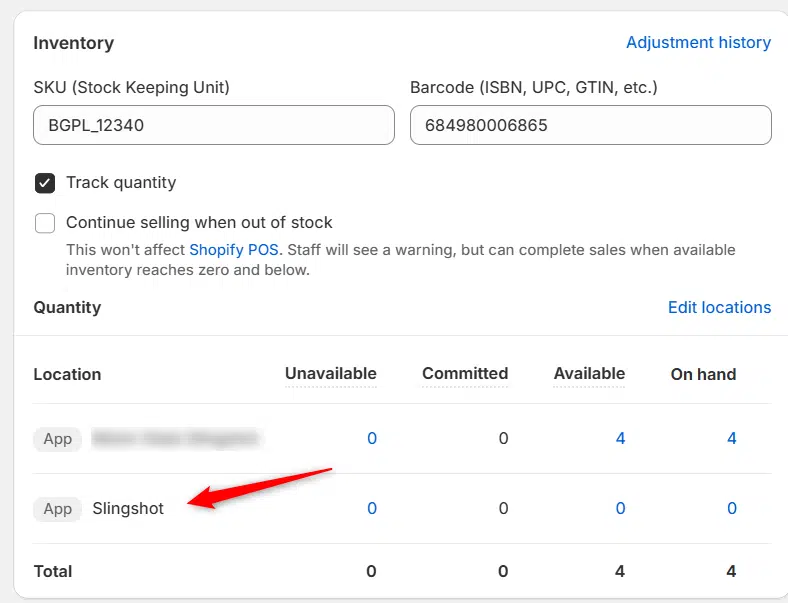
Previously we had all skus showing a single location called the “Slingshot App”, however we received a lot of requests
Create Parent collection in Shopify

Create Parent collection in Shopify

1. Click “Products” 2. Click “Collections” 3. Click “Create collection” 4. Click the “Title” field. 5. Enter the desired name

Add your Comment

Stay Connected

More Updates

AI generated image-vehicle on a road with a tariff sign behind

How Tariffs are Shaping the Future of Automotive Parts Businesses—And What You Can Do to Stay Profitable

For small and mid-sized automotive parts businesses across North America, the pressure is mounting. Recent tariff changes introduced by the Trump administration have disrupted long-standing supply chains, driven up costs, and created new challenges in an already competitive market. At Data Here-to-There (DH2T), we’re monitoring these shifts closely—so you can understand what’s changing, why it matters, and how to steer your business through the uncertainty ahead.
How to Customize FAQ Blocks

How to Customize FAQ Blocks

1. Open the theme editor by clicking “Customize” 2. Click “Home page” 3. Click “Pages” 4. Click “faq” 5. Click on any FAQ block to
Select your currency