Fitment Tables

It is important to note that not all products will have fitment tables displayed. This can be attributed to two main factors: the absence of fitment data or the categorization of the products as universal parts. In such instances, a fitment table will not be available.

To manage the display of fitment tables, you can navigate to the Content section and locate the enable fitment tables button. Clicking on this button will allow you to toggle the feature on or off, depending on your specific requirements:

1. Click “Content”
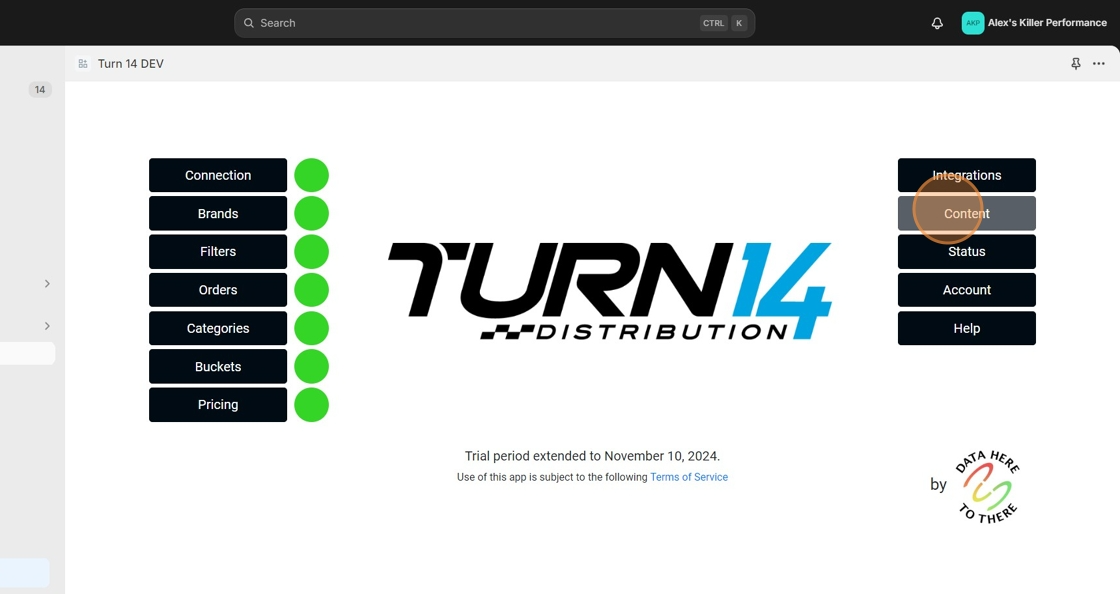
Data Here-to-There Inc. | Fitment Tables

2. Click the “Enable fitment tables” field.
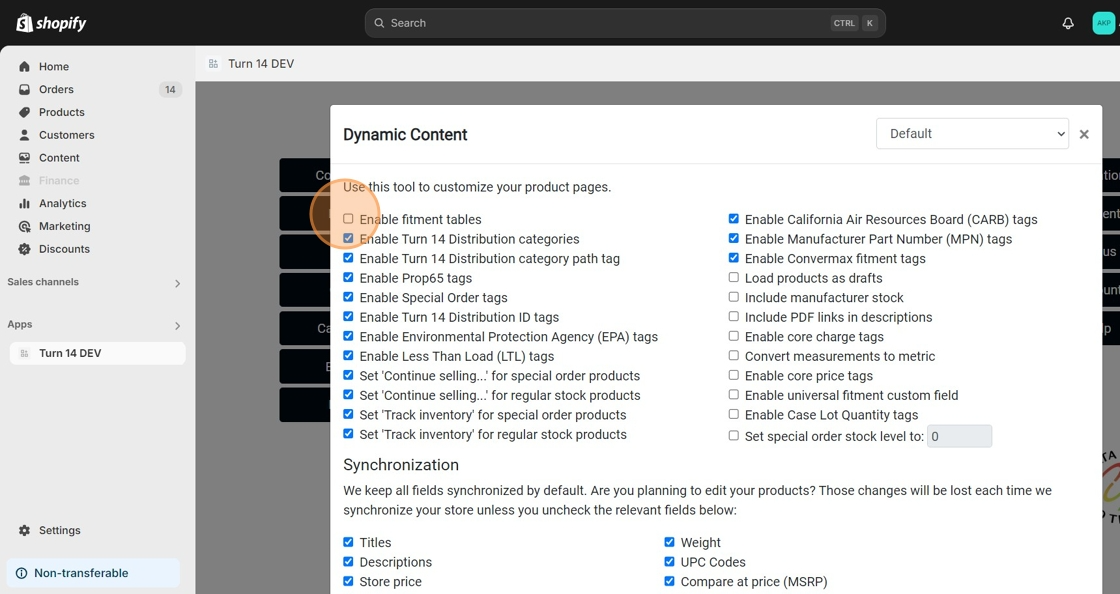
Data Here-to-There Inc. | Fitment Tables

This is an example of a fitment table as it appears in your store:
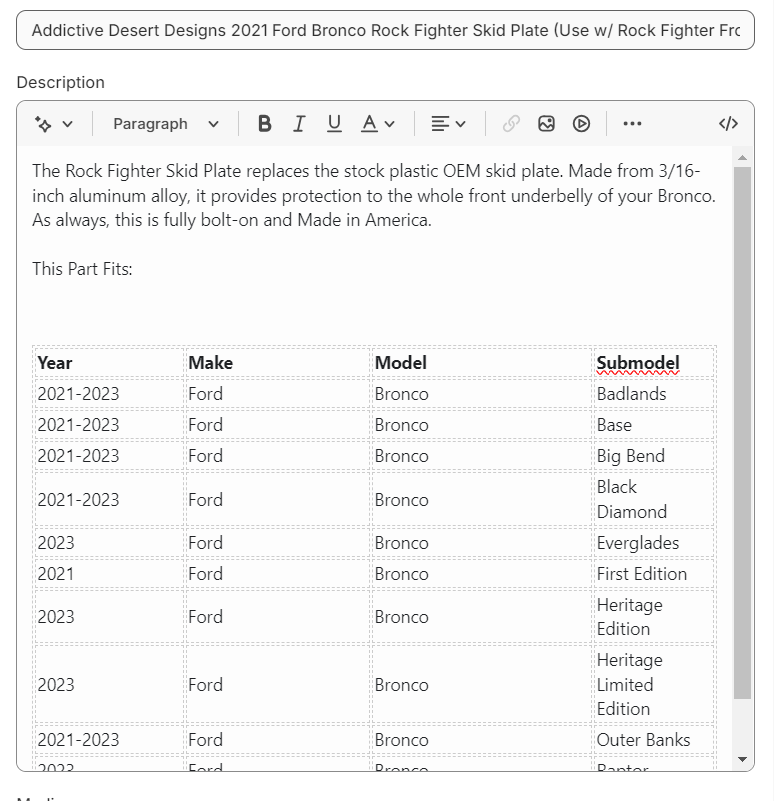
Data Here-to-There Inc. | Fitment Tables

Share:

More Scribes

multi location inventory

Multi Location Inventory

Previously we had all skus showing a single location called the “Slingshot App”, however we received a lot of requests
Create Parent collection in Shopify

Create Parent collection in Shopify

1. Click “Products” 2. Click “Collections” 3. Click “Create collection” 4. Click the “Title” field. 5. Enter the desired name

Add your Comment

Stay Connected

More Updates

connecting-fastco

Connecting FastCo

1. Open your Shopify store 2. Open the “Slingshot Automotive” app 3. Click “Settings” 4. Scroll down to “FastCo” and click “Connect” 5. Enter your
Connecting MotorState

Connecting MotorState

Use the following instructions to enable your Motor State data feed for Slingshot 1. Log into your PriceGuidePro account using the credentials you received from your Motor
Universal Fitment Tags

Universal Fitment Tags

Per a customers request we added in a tag for universal fitment products to assist with filtering.  1. Click “Content” 2. Click “Enable universal fitment
Select your currency