
Connecting Holley

Customers are required to have a http://b2b.holley.com/ account. 

1.Sign into Holley B2B (https://b2b.holley.com)

2.Click Downloads 

3. Right click on the “Available Inventory Report”

4. Click copy link address. See screenshot below. The link address contains your unique API key.

Data Here-to-There Inc. | Connecting Holley

The link will look something like:  https://b2b.holley.com/data/atp/?api_key=123abc456efg7h8i 

You then copy the part after api_key= (123abc456efg7h8i from the example above) into the  Holley connection in your Slingshot app settings, and change the update rate to “Daily” or “Hourly” depending on what you have access to, then click “Accept”

Data Here-to-There Inc. | Connecting Holley

Share:

More Scribes

multi location inventory

Multi Location Inventory

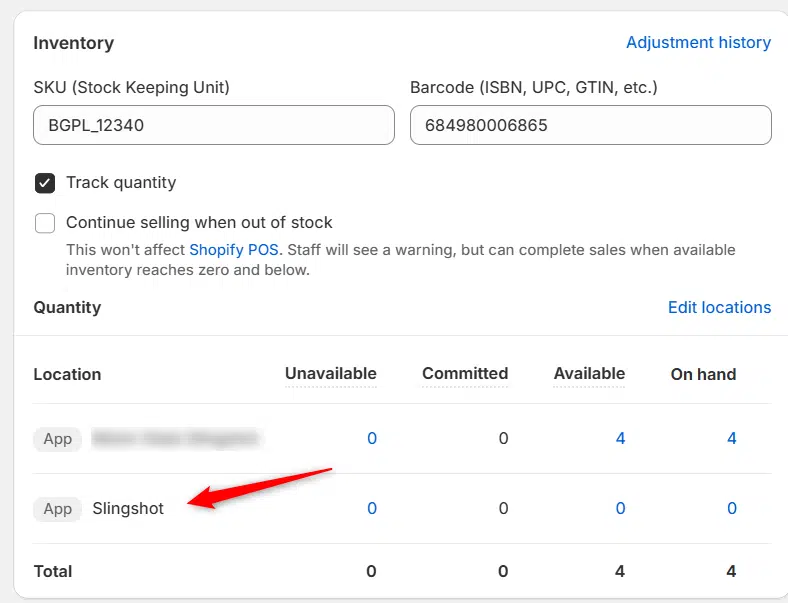
Previously we had all skus showing a single location called the “Slingshot App”, however we received a lot of requests
Create Parent collection in Shopify

Create Parent collection in Shopify

1. Click “Products” 2. Click “Collections” 3. Click “Create collection” 4. Click the “Title” field. 5. Enter the desired name

Add your Comment

Stay Connected

More Updates

How to Customize FAQ Blocks

How to Customize FAQ Blocks

1. Open the theme editor by clicking “Customize” 2. Click “Home page” 3. Click “Pages” 4. Click “faq” 5. Click on any FAQ block to
Embed Estimated Shipping

Embed Estimated Shipping

You can utilize the embedded estimated shipping rates feature in the pricing tab of the Turn 14 app. This option provides convenience but comes with
Select your currency