Fitment Tables

It is important to note that not all products will have fitment tables displayed. This can be attributed to two main factors: the absence of fitment data or the categorization of the products as universal parts. In such instances, a fitment table will not be available.

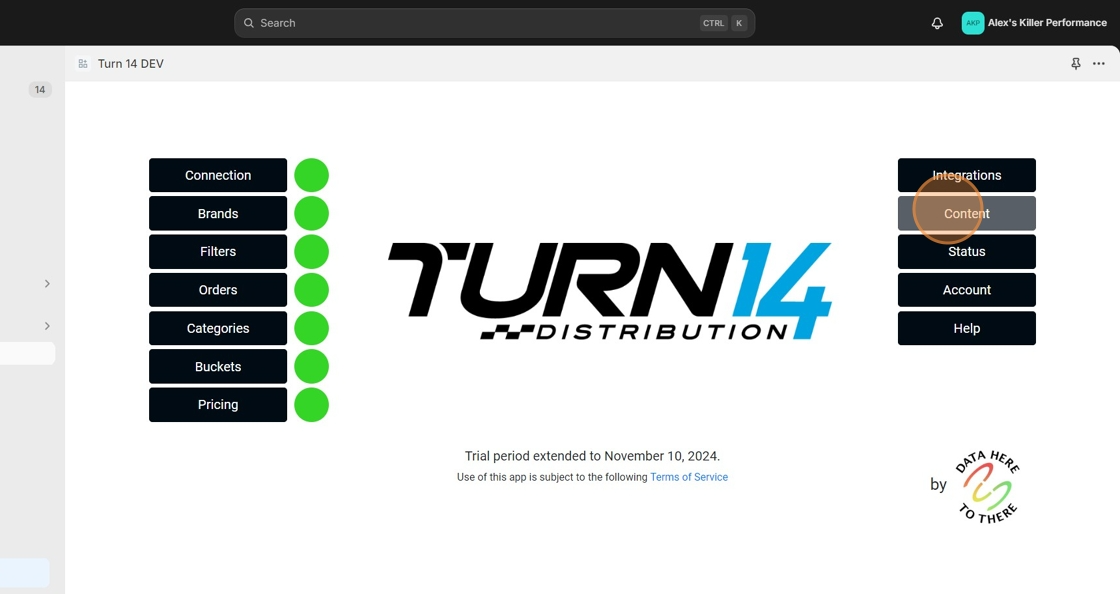
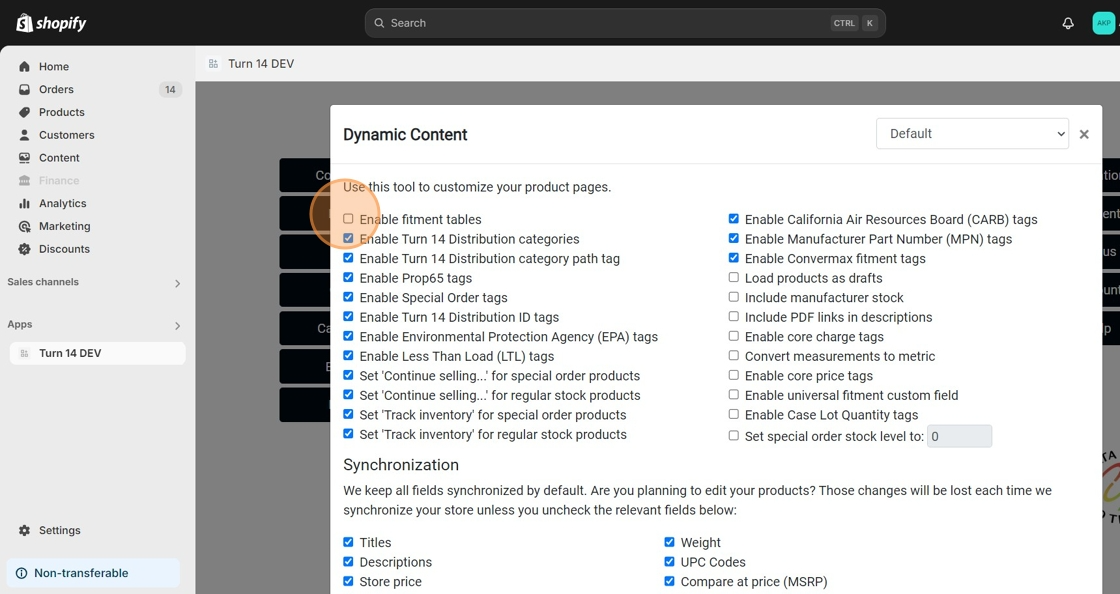
To manage the display of fitment tables, you can navigate to the Content section and locate the enable fitment tables button. Clicking on this button will allow you to toggle the feature on or off, depending on your specific requirements:

1. Click “Content”
Data Here-to-There Inc. | Fitment Tables

2. Click the “Enable fitment tables” field.
Data Here-to-There Inc. | Fitment Tables

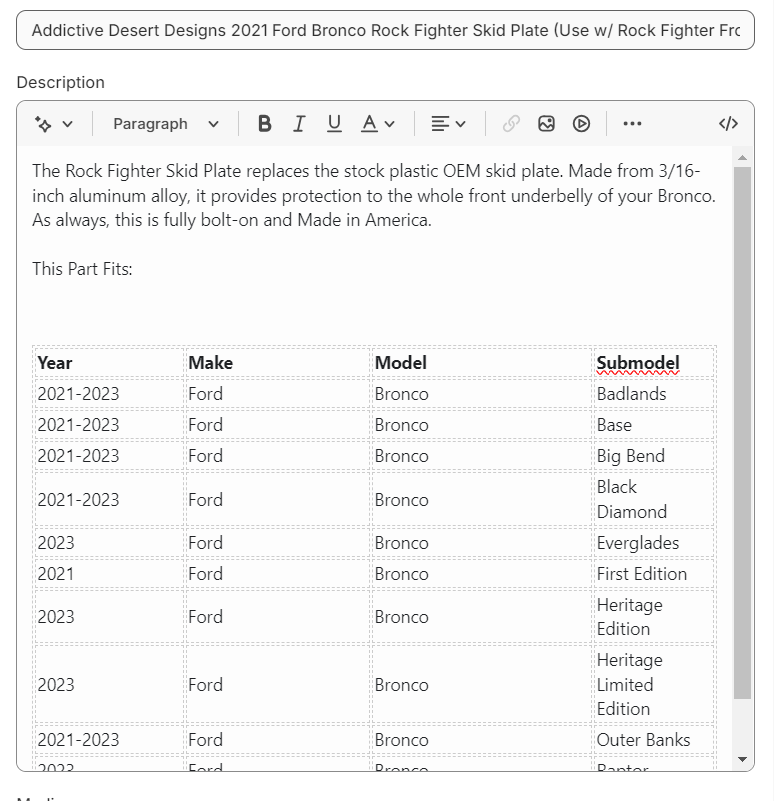
This is an example of a fitment table as it appears in your store:
Data Here-to-There Inc. | Fitment Tables

Share:

More Scribes

multi location inventory

Multi Location Inventory

Previously we had all skus showing a single location called the “Slingshot App”, however we received a lot of requests
Create Parent collection in Shopify

Create Parent collection in Shopify

1. Click “Products” 2. Click “Collections” 3. Click “Create collection” 4. Click the “Title” field. 5. Enter the desired name

Add your Comment

Stay Connected

More Updates

AI-generated graphic: Illustration showing dirty data killing sales versus clean data driving growth in automotive e-commerce.

Dirty Data Clean Up: How to Turn Catalog Chaos into Ecommerce Sales Power

In the automotive aftermarket, messy catalogs and “dirty data” can stall sales before they start. Inconsistent listings, incorrect fitment, and missing details don’t just frustrate customers, they cost you conversions, returns, and revenue. As Selina Rentz-Weddle of MANN+HUMMEL noted, “dirty data creates friction at every level.” This article explains how cleaning up your catalog and syncing data across platforms can transform chaos into ecommerce sales power, and how Data Here-to-There’s apps make the process seamless.
Select your currency