Connecting the Slingshot (DH2T) Catalog

1. Open your Shopify store

2. Open the “Slingshot Automotive” app

Data Here-to-There Inc. | Connecting the Slingshot (DH2T) Catalog

3. Click “Settings”

Data Here-to-There Inc. | Connecting the Slingshot (DH2T) Catalog

4. Click “Catalogs”

Data Here-to-There Inc. | Connecting the Slingshot (DH2T) Catalog

5. Scroll down to “Slingshot” and click “Connect”

Data Here-to-There Inc. | Connecting the Slingshot (DH2T) Catalog

6. Click “Accept”

Data Here-to-There Inc. | Connecting the Slingshot (DH2T) Catalog

Share:

More Scribes

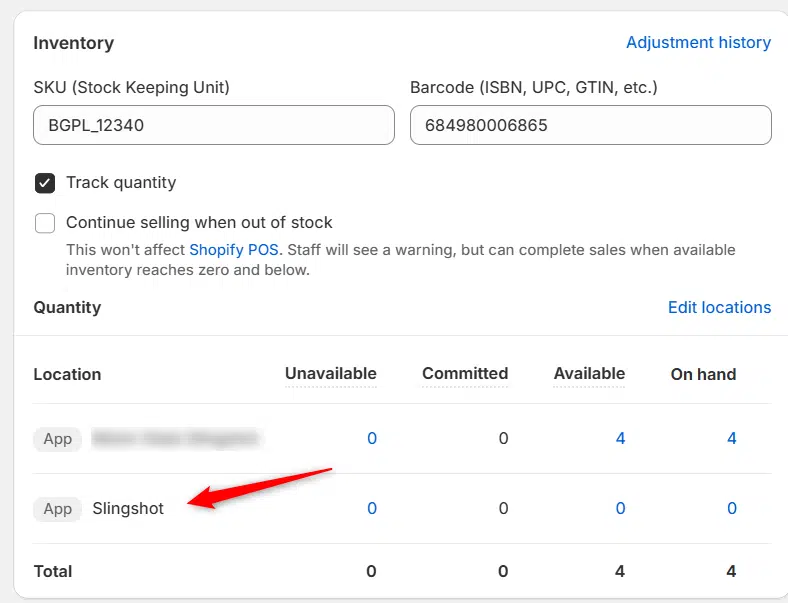
multi location inventory

Multi Location Inventory

Previously we had all skus showing a single location called the “Slingshot App”, however we received a lot of requests
Create Parent collection in Shopify

Create Parent collection in Shopify

1. Click “Products” 2. Click “Collections” 3. Click “Create collection” 4. Click the “Title” field. 5. Enter the desired name

Add your Comment

Stay Connected

More Updates

Order Status and Error Messages

Order Status and Error Messages

In the current version of our app, there are two ways to check the status of an order. Below is an example showing that Turn
Live Shipping Rates Setup Instructions

Live Shipping Rates Setup Instructions

First, users must have Advanced Shopify or Shopify Plus plans or yearly billing. See link: Third-party carrier-calculated shipping rates  Second you need to have set
Select your currency