Connecting SSF (Catalog)

1. Open your Shopify store

2. Open the “Slingshot Automotive” app

Data Here-to-There Inc. | Connecting SSF (Catalog)

3. Click “Settings”

Data Here-to-There Inc. | Connecting SSF (Catalog)

4. Click “Catalogs”

Data Here-to-There Inc. | Connecting SSF (Catalog)

5. Scroll down to “SSF Catalog” and click “Connect”

Data Here-to-There Inc. | Connecting SSF (Catalog)

5. Enter your Account number and SFTP credentials, then click “Accept”

Account number and SFTP credentials can be obtained from your SSF representative. For assistance, contact info@ssfautoparts.com

Data Here-to-There Inc. | Connecting SSF (Catalog)

Share:

More Scribes

multi location inventory

Multi Location Inventory

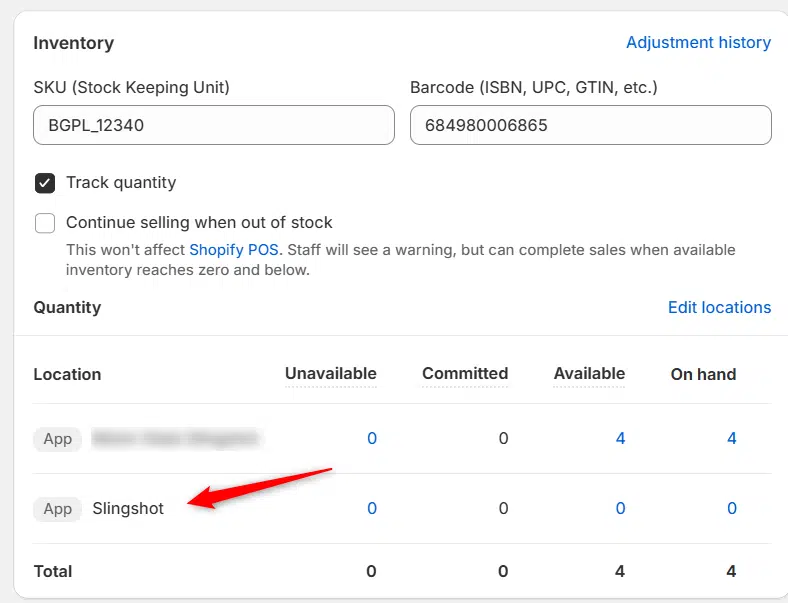
Previously we had all skus showing a single location called the “Slingshot App”, however we received a lot of requests
Create Parent collection in Shopify

Create Parent collection in Shopify

1. Click “Products” 2. Click “Collections” 3. Click “Create collection” 4. Click the “Title” field. 5. Enter the desired name

Add your Comment

Stay Connected

More Updates

Connecting Wheel Pros Catalog

Connecting Wheel Pros Catalog

**First, you must setup your wheel pros data feed, instructions on how to do so can be found here – https://dataheretothere.freshdesk.com/a/solutions/articles/69000834016 1. Open your Shopify store
Universal Fitment Products

Universal Fitment Products

Universal products contain both truly universal products like batteries, but also products that don’t have fitment data. This means you can have a product that
Select your currency