
Connecting Paramount Data Management (PDM)

1. Open your Shopify store

2. Open the “Slingshot Automotive” app

Data Here-to-There Inc. | Connecting Paramount Data Management (PDM)

3. Click “Settings”

Data Here-to-There Inc. | Connecting Paramount Data Management (PDM)

4. Click “Catalogs”

Data Here-to-There Inc. | Connecting Paramount Data Management (PDM)

5. Scroll down to “Paramount Data Management” and click “Connect” 

Data Here-to-There Inc. | Connecting Paramount Data Management (PDM)

5. Email Support@dataheretothere.com and request an FTP be created for you for PDM. Include the name of your store and URL in this email.

6. Follow this guide to setup PDM’s side of the FTP

7. Enter the credentials provided by DH2T Support into the Atech connection window, and click “Accept”

Data Here-to-There Inc. | Connecting Paramount Data Management (PDM)

Share:

More Scribes

multi location inventory

Multi Location Inventory

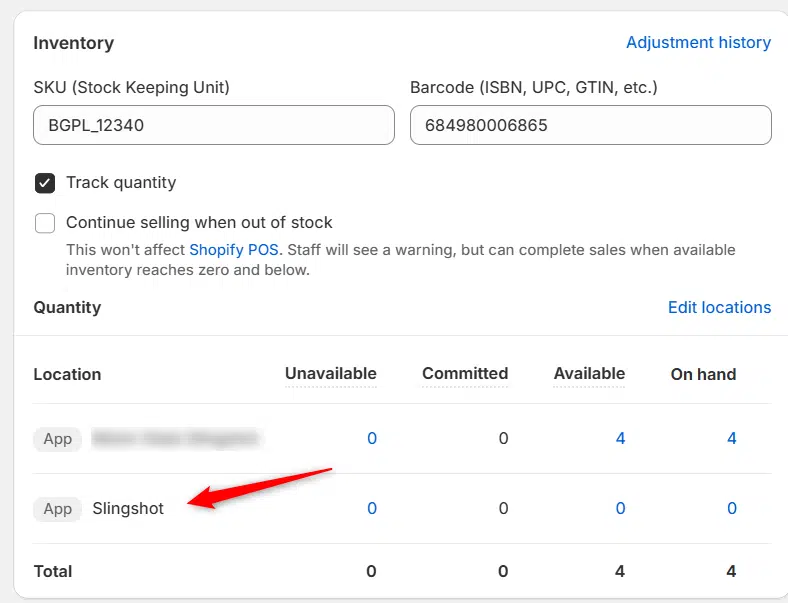
Previously we had all skus showing a single location called the “Slingshot App”, however we received a lot of requests
Create Parent collection in Shopify

Create Parent collection in Shopify

1. Click “Products” 2. Click “Collections” 3. Click “Create collection” 4. Click the “Title” field. 5. Enter the desired name

Add your Comment

Stay Connected

More Updates

AimExpo 2026 - DH2T Booth Number: 829

What’s New at DH2T: SEMA Highlights and AIMExpo Preview

With SEMA wrapped and AIMExpo just ahead, 2026 is already shaping up to be a big year for dealers ready to boost parts sales and grow beyond local boundaries. DH2T is helping shops do exactly that with automation, smarter tools, and an e-commerce system that works seamlessly with their DMS. If you’re heading to AIMExpo, swing by booth 829, catch Stephanie Benger’s Tech Talk, and see how dealers are scaling faster and selling more with less effort.
connect-atech

Connecting Atech

1. Open your Shopify store 2. Open the “Slingshot Automotive” app 3. Click the “Settings” tab 4. Scroll down to Atech and click “Connect” 5.
Dynamic Content Overview

Dynamic Content Overview

The Dynamic Content section within the app appears as shown below. By default, all check boxes are selected, indicating that all tags associated with the
Select your currency