Brand Specific Filters

If you want to set filters for specific brands, you can now do so! For example if you want to allow universal products for brands who handle tires only, you can select them from the brands menu and allow universal products for those specific tire brands. Just remember to click the save button for each brand before moving on to the next one!

1. Click “Filters”

Data Here-to-There Inc. | Brand Specific Filters

2. Click the brands dropdown and select the brand you want to set specific settings for

Data Here-to-There Inc. | Brand Specific Filters

3. Make the changes for the specific brand

Data Here-to-There Inc. | Brand Specific Filters

4. Click “Save”

Data Here-to-There Inc. | Brand Specific Filters

Share:

More Scribes

multi location inventory

Multi Location Inventory

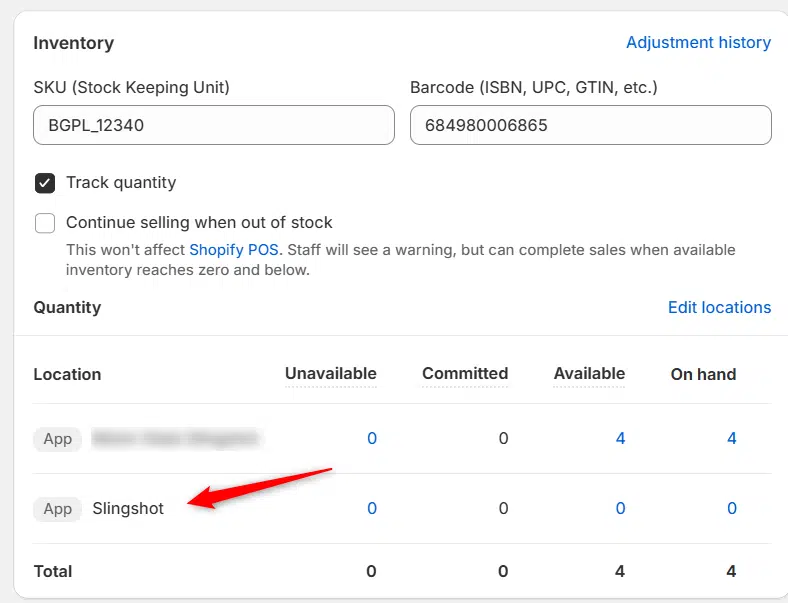
Previously we had all skus showing a single location called the “Slingshot App”, however we received a lot of requests
Create Parent collection in Shopify

Create Parent collection in Shopify

1. Click “Products” 2. Click “Collections” 3. Click “Create collection” 4. Click the “Title” field. 5. Enter the desired name

Add your Comment

Stay Connected

More Updates

turn-14-distribution logo

The Power of Turn 14 Distribution and BigCommerce

The Turn 14 Distribution app for BigCommerce is an innovative tool for automotive e-commerce. As it offers an advanced connection to one of the industry’s most trusted parts distributors, it also leverages BigCommerce’s powerful platform. By integrating Turn 14’s extensive catalog and real-time data management capabilities with BigCommerce’s robust online store features, this app simplifies inventory management, streamlines product updates, and keeps your stock and pricing always up-to-date. The app automates everything from synchronizing stock levels to adding new products and discontinuing outdated ones, freeing you from time-consuming manual updates.
Connecting Earl Owen

Connecting Earl Owen

1. Open your Shopify store 2. Open the “Slingshot Automotive” app 3. Click the “Settings” tab 4. Scroll down to Earl Owen and click “Connect”
connecting-fastco

Connecting FastCo

1. Open your Shopify store 2. Open the “Slingshot Automotive” app 3. Click “Settings” 4. Scroll down to “FastCo” and click “Connect” 5. Enter your
Select your currency