How to disable “X amount sold in last X hours” feature on product page in Spark Theme

1. Open your Shopify store

2. Open the theme editor with the “Customize” button

Data Here-to-There Inc. | How to disable “X amount sold in last X hours” feature on product page in Spark Theme

3. Click the “Home Page” dropdown

Data Here-to-There Inc. | How to disable “X amount sold in last X hours” feature on product page in Spark Theme

4. Click “Products”

Data Here-to-There Inc. | How to disable “X amount sold in last X hours” feature on product page in Spark Theme

5. Click “Default product”

Data Here-to-There Inc. | How to disable “X amount sold in last X hours” feature on product page in Spark Theme

6. Open the “Product Top Layout” section

Data Here-to-There Inc. | How to disable “X amount sold in last X hours” feature on product page in Spark Theme

7. Scroll down to “Products has been sold” and untick “Enabled”

Data Here-to-There Inc. | How to disable “X amount sold in last X hours” feature on product page in Spark Theme

Share:

More Scribes

multi location inventory

Multi Location Inventory

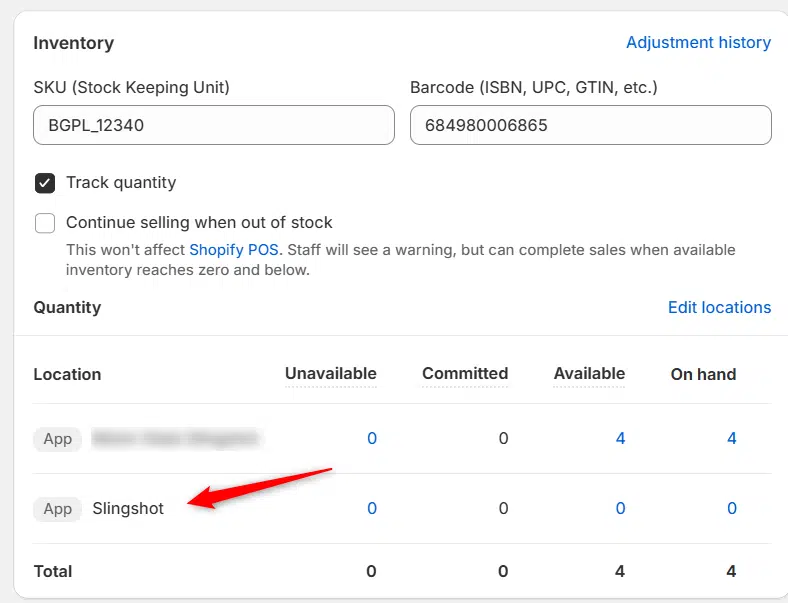
Previously we had all skus showing a single location called the “Slingshot App”, however we received a lot of requests
Create Parent collection in Shopify

Create Parent collection in Shopify

1. Click “Products” 2. Click “Collections” 3. Click “Create collection” 4. Click the “Title” field. 5. Enter the desired name

Add your Comment

Stay Connected

More Updates

Connecting AllPro

Connecting AllPro

1. Open your Shopify store 2. Open the “Slingshot Automotive” app 3. Click “Settings” 4. Scroll down to “AllPro” and click “Connect” 5. Enter your
Select your currency