
Universal Fitment Products

Universal products contain both truly universal products like batteries, but also products that don’t have fitment data. This means you can have a product that says in the title it’s for a Ford F-150 but if it doesn’t have fitment data it will still end up in the universal product category.   

For example in your fitment filters let’s say you selected these specific vehicles… basically 1979 to 1993 Mustang only. But you have non-Mustang parts loading into your store.

Click on “Filters” and try selecting “Exclude universal fitment parts”. It should look like this:

Data Here-to-There Inc. | Universal Fitment Products

It may take awhile for the app to delete all the universal fitment parts as there are a lot of them! But this should definitely let you display only the parts from the makes, models, sub-models and years that you have selected.
Share:

More Scribes

multi location inventory

Multi Location Inventory

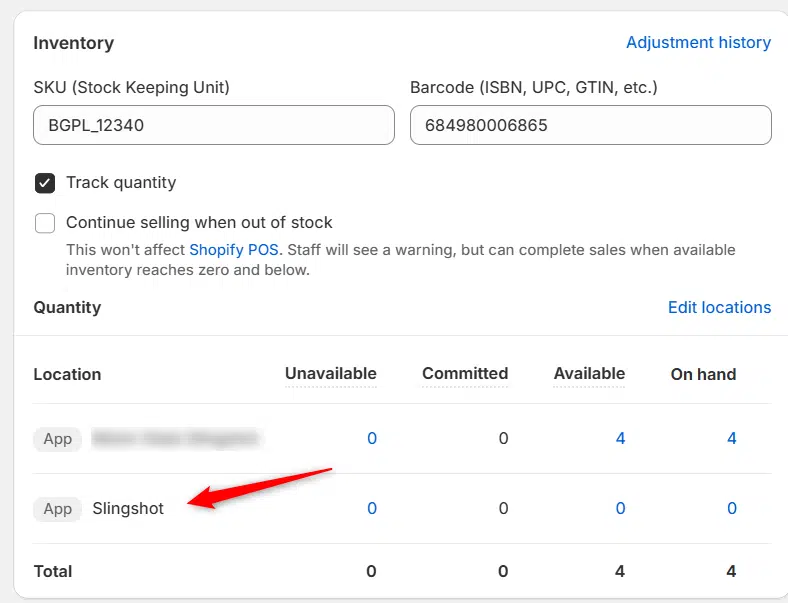
Previously we had all skus showing a single location called the “Slingshot App”, however we received a lot of requests
Create Parent collection in Shopify

Create Parent collection in Shopify

1. Click “Products” 2. Click “Collections” 3. Click “Create collection” 4. Click the “Title” field. 5. Enter the desired name

Add your Comment

Stay Connected

More Updates

Connecting FastCo (Catalog)

Connecting FastCo (Catalog)

1. Open your Shopify store 2. Open the “Slingshot Automotive” app 3. Click “Settings” 4. Click “Catalogs” 5. Scroll down to “FastCo Catalog” and click
Shopify Shipping Zones

Shopify Shipping Zones

In order to let customer checkout you must first have your Shipping zones set up in your Shopify settings. Basically all you are doing is
Edit Vertical menu in Spark Theme

Edit Vertical menu in Spark Theme

1. Click “Online Store” 2. Click “Navigation” 3. Click “Main menu” 4. Click “Edit” or “Delete” on the menu item you want to change
Select your currency