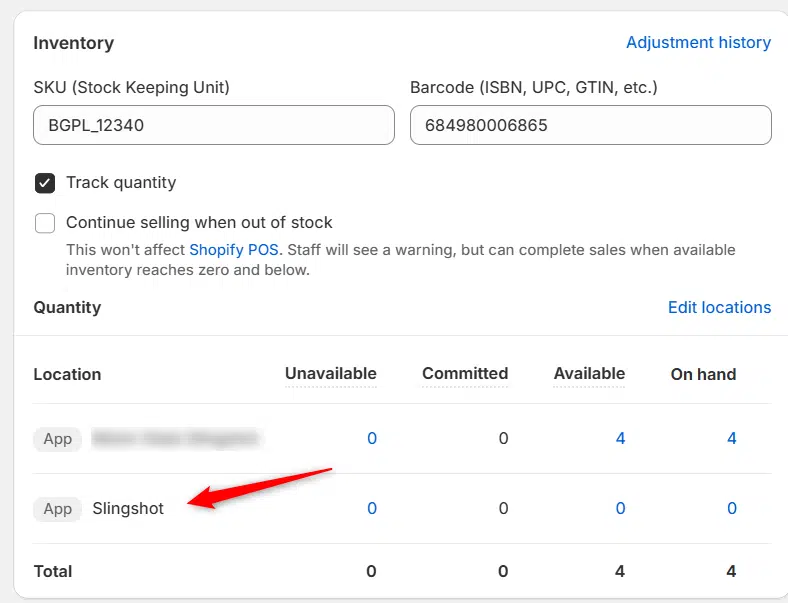
Adding the Manufacturer Part Number (MPN/Original sku) to your Shopify product pages can provide valuable information to your customers and benefit your store’s SEO. If you’re using the Slingshot Automotive app, you can easily incorporate this feature into your online store. In this article, we will guide you through the process of adding the Manufacturer Part Number to your Shopify product page using the provided code snippet.
Step 1: Locate Your Theme Files
Accessing and editing your Shopify theme files is a critical step in adding the SKU information to your product pages. Follow these steps to access your theme files:
1. Log in to your Shopify admin panel.
2. From the left sidebar, select “Online Store” and then click on “Themes.”
3. In the “Themes” section, locate the theme you are using and click on the “Actions” dropdown.
4. Choose “Edit code” from the dropdown menu.

Step 2: Add the SKU Code Snippet
Once you’ve accessed the theme code editor, you can proceed to add the SKU information to your product pages. The file name of the product page may differ based on the current theme you’re using – you can check the documentation of your theme to identify the correct file. Insert the following code snippet where you want the Manufacturer Part Number (SKU) to appear on your product pages:
<div>
{% assign current_variant = product.selected_or_first_available_variant %}
{% assign part_number = current_variant.sku | split: “_” %}
<span class=”variant-sku”>Part Number: {{ part_number[1] }}</span>
</div>
This code will retrieve the SKU information from your product and display it on your product pages as “Part Number.”
Step 3: Save the File
After adding the code snippet, make sure to save your changes. To test if the SKU information is displaying correctly, visit one of your product pages in your Shopify store. You should see the Manufacturer Part Number (SKU) displayed as “Part Number”.