Connecting Wheel Pros Catalog

**First, you must setup your wheel pros data feed, instructions on how to do so can be found here – https://dataheretothere.freshdesk.com/a/solutions/articles/69000834016

1. Open your Shopify store

2. Open the “Slingshot Automotive” app

Data Here-to-There Inc. | Connecting Wheel Pros Catalog

3. Click “Settings”

Data Here-to-There Inc. | Connecting Wheel Pros Catalog

4. Click “Catalogs”

Data Here-to-There Inc. | Connecting Wheel Pros Catalog

5. Scroll down to “Wheel Pros Catalog” and click “Connect”

Data Here-to-There Inc. | Connecting Wheel Pros Catalog

6. Enter your SFTP Credentials you created when setting up the data feed, and click “Accept”

Data Here-to-There Inc. | Connecting Wheel Pros Catalog

Share:

More Scribes

multi location inventory

Multi Location Inventory

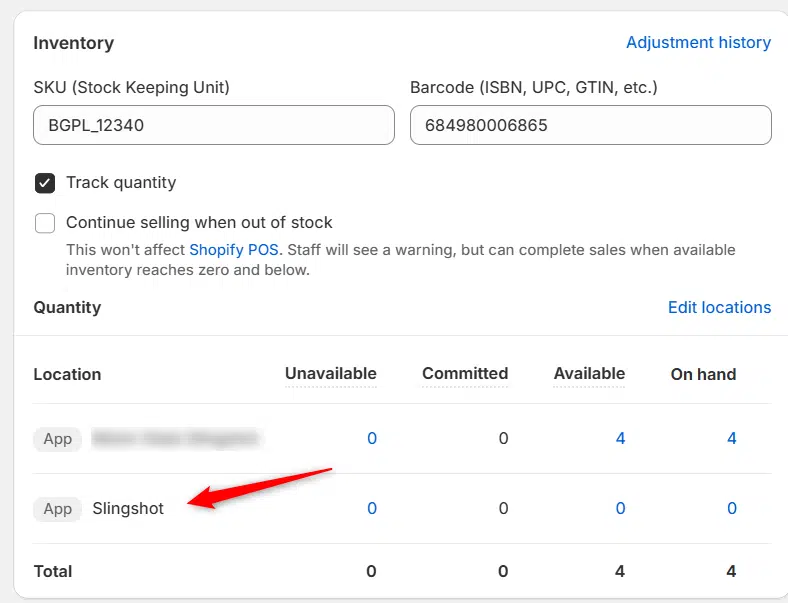
Previously we had all skus showing a single location called the “Slingshot App”, however we received a lot of requests
Create Parent collection in Shopify

Create Parent collection in Shopify

1. Click “Products” 2. Click “Collections” 3. Click “Create collection” 4. Click the “Title” field. 5. Enter the desired name

Add your Comment

Stay Connected

More Updates

Dynamic Content Overview

Dynamic Content Overview

The Dynamic Content section within the app appears as shown below. By default, all check boxes are selected, indicating that all tags associated with the
Connecting CTP (Catalog)

Connecting CTP (Catalog)

1. Open your Shopify store 2. Open the “Slingshot Automotive” app 3. Click the “Settings” tab 4. Click “Catalogs” 5. Scroll down to CTP and
Select your currency