Connecting CTP (Catalog)

1. Open your Shopify store

2. Open the “Slingshot Automotive” app

Data Here-to-There Inc. | Connecting CTP (Catalog)

3. Click the “Settings” tab

Data Here-to-There Inc. | Connecting CTP (Catalog)

4. Click “Catalogs”

Data Here-to-There Inc. | Connecting CTP (Catalog)

5. Scroll down to CTP and click “Connect”

Data Here-to-There Inc. | Connecting CTP (Catalog)

5. Email Support@dataheretothere.com and request an FTP be created for you for the CTP Catalog. Include the name of your store and URL in this email.

6. Email your CTP account representative the provided FTP information and request they set up an FTP feed with those details, specify that it is for the Catalog data, not the stock and pricing data.

7. Enter the credentials provided by DH2T Support into the CTP connection window, and click “Accept”

Data Here-to-There Inc. | Connecting CTP (Catalog)

Share:

More Scribes

multi location inventory

Multi Location Inventory

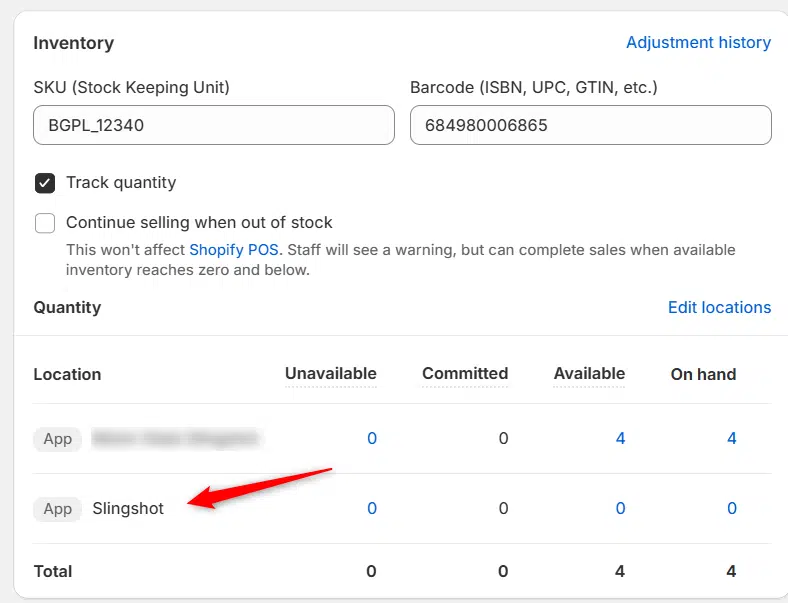
Previously we had all skus showing a single location called the “Slingshot App”, however we received a lot of requests
Create Parent collection in Shopify

Create Parent collection in Shopify

1. Click “Products” 2. Click “Collections” 3. Click “Create collection” 4. Click the “Title” field. 5. Enter the desired name

Add your Comment

Stay Connected

More Updates

Connecting Wheel Pros Catalog

Connecting Wheel Pros Catalog

**First, you must setup your wheel pros data feed, instructions on how to do so can be found here – https://dataheretothere.freshdesk.com/a/solutions/articles/69000834016 1. Open your Shopify store
Select your currency