Connecting ASAP

**Please note, if you want to connect ASAP brands via the API there is a fee. 

While the ASAP account is free there is a charge to use the API.  You wont need to pick a tier – the usage will dictate how much you are charged. Here’s a link to the ASAP site with the pricing.

1. Open your Shopify store

2. Open the “Slingshot Automotive” app

Data Here-to-There Inc. | Connecting ASAP

3. Click the “Settings” tab

Data Here-to-There Inc. | Connecting ASAP

4. Click “Catalogs”

Data Here-to-There Inc. | Connecting ASAP

5. Scroll down to “ASAP” and click “Connect”

Data Here-to-There Inc. | Connecting ASAP

6. Enter your ASAP API Key and click “Accept” 

Instructions for acquiring an API key can be seen here: https://dataheretothere.freshdesk.com/a/solutions/articles/69000859548

Data Here-to-There Inc. | Connecting ASAP

Share:

More Scribes

multi location inventory

Multi Location Inventory

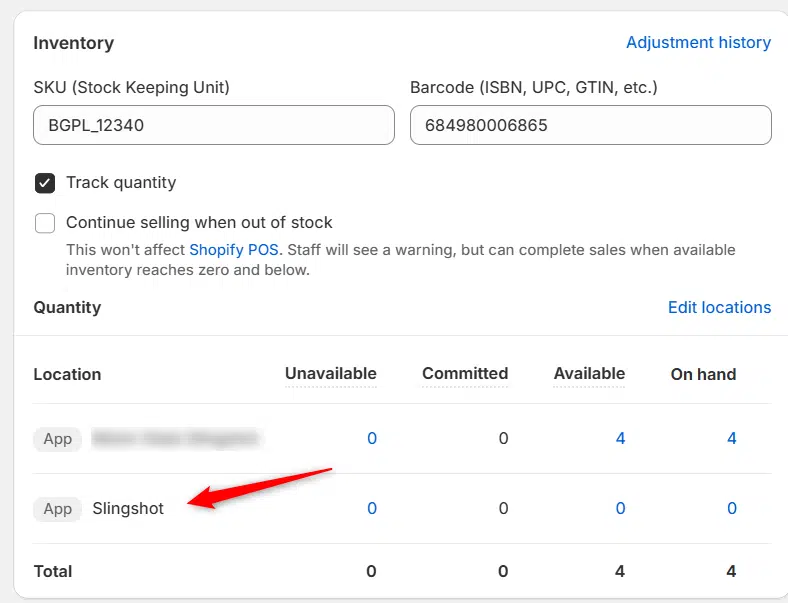
Previously we had all skus showing a single location called the “Slingshot App”, however we received a lot of requests
Create Parent collection in Shopify

Create Parent collection in Shopify

1. Click “Products” 2. Click “Collections” 3. Click “Create collection” 4. Click the “Title” field. 5. Enter the desired name

Add your Comment

Stay Connected

More Updates

connect-dix

Connecting DIX

1. Open your Shopify store 2. Open the “Slingshot Automotive” app 3. Click the “Settings” tab 4. Scroll down to DIX and click “Connect” 5.
Where to Find API Credentials

Where to Find API Credentials

1. Log into your Turn 14 account on their website 2. Click “SETTINGS & DATA” 3. Click “API” 4. Click “Documentation” 5. Scroll down just
Connecting Wheel Pros Catalog

Connecting Wheel Pros Catalog

**First, you must setup your wheel pros data feed, instructions on how to do so can be found here – https://dataheretothere.freshdesk.com/a/solutions/articles/69000834016 1. Open your Shopify store
Select your currency