
Connecting MotorState

Use the following instructions to enable your Motor State data feed for Slingshot

1. Log into your PriceGuidePro account using the credentials you received from your Motor State representative

2. Open the Business Tools menu and select Data Export:

Data Here-to-There Inc. | Connecting MotorState

3.Click on the “Create a new export” button

Data Here-to-There Inc. | Connecting MotorState

4. Enter “DH2T” as the data export name, this step is important otherwise the exports won’t work with our system.

    – Under Range, select “All stocking Part Numbers”

    – Under Template, select “Custom”

    – Check the “SelectAll” checkbox

Data Here-to-There Inc. | Connecting MotorState

5. Click the ftp button and use the default settings (or customize the update interval)

6. Press the Create & Save Export button

Data Here-to-There Inc. | Connecting MotorState

7. Add an additional inventory file to update inventory more frequently

    – Click on the “Create a new export” button

    – Enter “Inventory” as the data export name

    – Under Range, select “Inventory Only Feed” 

    – Enable the FTP checkbox and select your preferred update rate

Data Here-to-There Inc. | Connecting MotorState

8. Press the Create & Save Export button

If you need any assistance from MotorState during this process please contact bbaker@motorstate.com 

9. Open the “Slingshot Automotive” app in your Shopify store, and navigate to “Settings” then click connect on “MotorState”

10. Enter your FTP login and Password, as well as your API key. (These are provided by MotorState) as well as the last 4 digits of your credit card on file with MotorState.

11. Select your Shipping option, and change the update rate to match what you have set up in step 5, then click “Accept”

Data Here-to-There Inc. | Connecting MotorState

Share:

More Scribes

multi location inventory

Multi Location Inventory

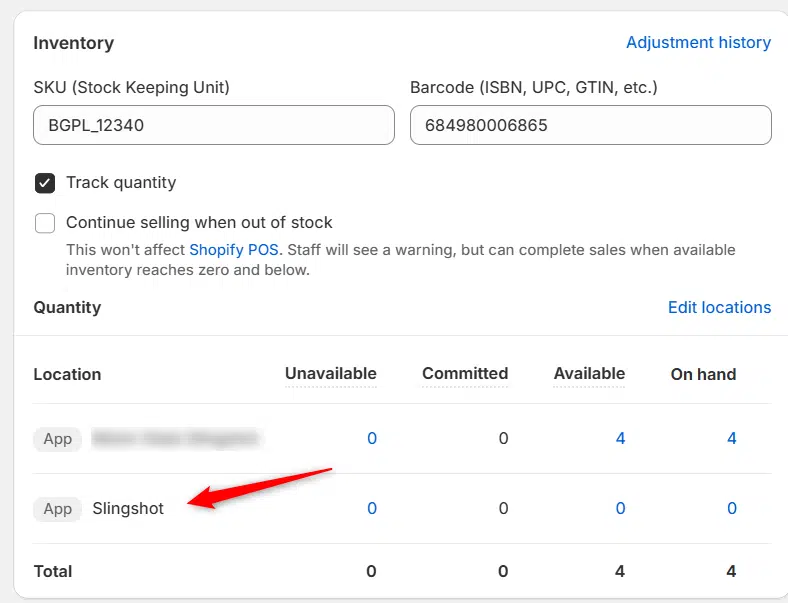
Previously we had all skus showing a single location called the “Slingshot App”, however we received a lot of requests
Create Parent collection in Shopify

Create Parent collection in Shopify

1. Click “Products” 2. Click “Collections” 3. Click “Create collection” 4. Click the “Title” field. 5. Enter the desired name

Add your Comment

Stay Connected

More Updates

Dan Ziegler, Turn 14 Distribution – Year, Make, Model, Money! Podcast

The Year, Make, Model, Money! Podcast, Episode 2, Part 1

“I started out on the web development team, just writing code like any other developer. I worked on a mix of things—our API, our warehouse login system, even parts of our Vendor Portal,” Dan explains. “But I started asking critical questions. Like, okay, if we’re going to build an API, how do we actually get our dealers and their developers to use it? They’re not going to call their sales rep and ask how to code. That’s not gonna work.” With that, Dan’s role evolved. He became not just a developer, but an API evangelist—someone who bridges the gap between hardcore tech and real-world business needs. Today, he leads the Integrations Department, helping dealers navigate T14’s robust API and making sure their businesses run smoothly.
Filtering: what is it good for?

Filtering: what is it good for?

Product Filtering and Curation A lot of suppliers have thousands and thousands of products. So why use filtering to narrow it down? Because when your
Connecting DCi

Connecting DCi

**Please note, first you must enable data downloads –https://dataheretothere.freshdesk.com/a/solutions/articles/69000840128 1. Open your Shopify store 2. Open the “Slingshot Automotive” app 3. Click the “Settings” tab
Select your currency